Windows Subsystem for Linux (WSL) for Bioinformatics: A Practical Beginner's Guide
🧬 Day 104of Daily Bioinformatics from Jojy’s Desk
If you have a Windows laptop, do you need to install Linux before you can start learning bioinformatics?
Not necessarily.
A large part of modern bioinformatics happens in a Linux environment — Bash scripting, Conda environments, command-line tools, HPC clusters, workflow managers. Students who use macOS already have a Unix-like terminal. Windows users have traditionally faced a harder choice: dual-boot, a virtual machine, or connect directly to a remote server.
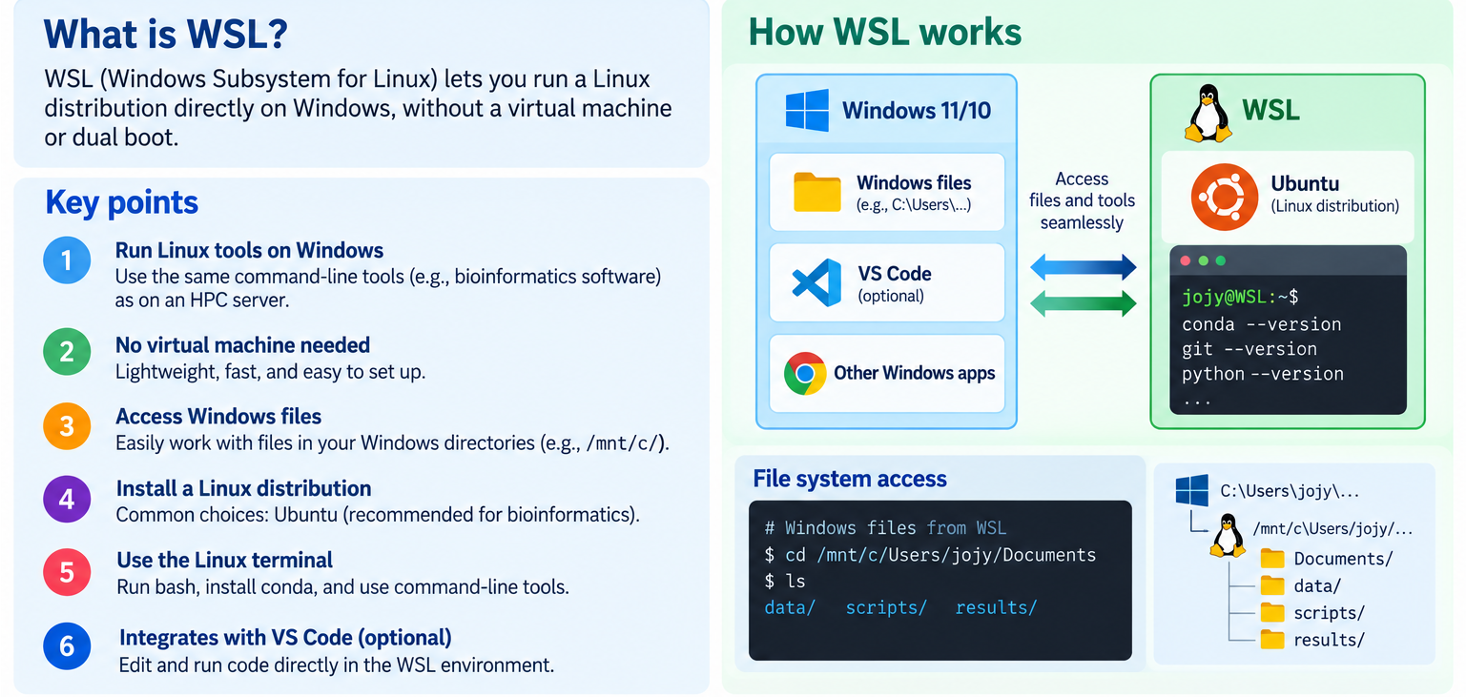
There is a practical middle ground that is often overlooked: Windows Subsystem for Linux (WSL). It puts a real Linux environment directly inside Windows, without replacing or partitioning anything. You keep your Windows applications, your file browser, your Office suite — and you get a Bash terminal running Ubuntu alongside them.
This post is the guide I wish existed for every bioinformatics workshop where half the participants have Windows laptops.
What WSL actually is
WSL stands for Windows Subsystem for Linux. It allows you to run a Linux distribution directly on Windows without a traditional virtual machine or dual-boot setup. The current version, WSL 2, runs a real Linux kernel inside a lightweight managed virtual machine. For most practical purposes — Bash, Git, Conda, Python, R, bioinformatics command-line tools — it behaves like a native Linux terminal.
Conceptually, your computer looks like this:
Windows
├── Microsoft Office, browser, Windows apps
├── VS Code
└── WSL 2
    └── Ubuntu
        ├── Bash
        ├── Git
        ├── Python / R
        ├── Conda / Bioconda
        └── Bioinformatics tools
For a learner, this means: you can keep using Windows while learning and practicing Linux.
WSL 1 vs WSL 2
WSL 2 is the relevant version for almost everyone. New distributions installed via wsl --install use WSL 2 by default. WSL 2 uses a real Linux kernel, offers better system-call compatibility, and generally better filesystem performance than WSL 1. Check which version you are running with:
wsl -l -v
Use WSL 2 unless you have a specific reason not to.
Why not just use VirtualBox or dual boot?
All approaches can work. The comparison below is practical, not absolute:
| Feature | WSL 2 | Traditional VM | Dual Boot |
|---|---|---|---|
| Real Linux kernel | Yes | Yes | Yes |
| Keep Windows running | Yes | Yes | No |
| Windows/Linux file integration | Excellent | Moderate | Limited |
| Setup difficulty | Low | Moderate | Higher |
| Good for teaching beginners | Excellent | Good | Lower |
| Large production analyses | Limited by laptop | Limited by laptop | Limited by laptop |
WSL is particularly useful for teaching because students do not need to fundamentally change how they use their computer before their first Bash command. The barrier to entry is a single PowerShell command.
Installation
For modern Windows 10 and Windows 11 systems, installation is a single command. Open PowerShell as Administrator and run:
wsl --install
This installs WSL 2 and Ubuntu by default. Restart your computer when prompted. After restarting, Ubuntu will launch and ask you to create a Linux username and password — these do not need to match your Windows credentials.
To install a different Linux distribution:
# See what is available
wsl --list --online

# Install a specific distribution
wsl --install -d Ubuntu-22.04
For beginners, Ubuntu is the best choice — extensive documentation, the largest community, and broad Bioconda support.
Verify the installation
wsl --status
wsl --version
wsl -l -v
Your first Linux commands
Open Ubuntu from the Start menu. The prompt will look like:
username@computer:~$
Try these immediately:
pwd                    # print working directory
ls                     # list files
mkdir bioinformatics   # create a directory
cd bioinformatics      # move into it
pwd                    # confirm where you are
touch test.txt         # create an empty file
ls -lh                 # list with sizes
Then update Ubuntu — do this on any fresh Linux installation before installing anything:
sudo apt update
sudo apt upgrade
When prompted for a password, type your Linux password. Nothing will appear on screen while you type — this is normal Linux behaviour.
The commands worth learning first
These appear repeatedly in every bioinformatics workflow:
# Navigation and files
pwd   ls   cd   mkdir   cp   mv   rm

# Viewing and inspecting data
cat   less   head   tail   wc

# Searching and filtering
grep   find   awk   sed   sort   cut

# Compression and transfer
gzip   tar   wget   curl   ssh   rsync
A student who can use these fluently is ready to follow almost any bioinformatics tutorial and ready to connect to an HPC cluster and feel at home.
RAM and storage: the honest numbers
WSL does not create computational resources. If your laptop has 16 GB RAM, WSL has access to some fraction of 16 GB RAM. The analysis requirements determine whether that is enough.
By default, WSL 2 can use up to 50% of total Windows memory (so 8 GB on a 16 GB machine), with processors defaulting to all logical processors available to Windows. These limits are configurable via a .wslconfig file in your Windows user directory:
[wsl2]
memory=8GB
processors=4
swap=4GB
Do not blindly copy these values — set them based on your computer and workload. The WSL defaults are reasonable for most learning scenarios.
For practical bioinformatics use, here is a realistic RAM guide:
| RAM | Practical use in WSL |
|---|---|
| 8 GB | Linux navigation, Git, Python/R, small exercises |
| 16 GB | Recommended starting point for learning bioinformatics tools |
| 32 GB | Comfortable for moderate local analyses |
| 64 GB+ | More capable, but still not a replacement for HPC |
Storage follows the same principle. Learning Bash and running small exercises needs a few GB. A real sequencing project needs hundreds of GB to TB — that lives on the HPC, not your laptop.
An important file storage rule
Your Windows C: drive is accessible from WSL at /mnt/c/. This is convenient, but:
For Linux-heavy bioinformatics work, store files in the Linux filesystem, not under /mnt/c/.
Linux tools reading and writing files across the Windows/Linux boundary can be significantly slower. Use your Linux home directory instead:
mkdir -p ~/projects
cd ~/projects
# run your bioinformatics workflows here
To open your current Linux directory in Windows Explorer (when you need to access files from the Windows side):
explorer.exe .
WSL + VS Code
This combination is especially good for teaching and development. Students get the familiar VS Code interface on Windows while their code and terminal run inside Linux.
Install VS Code on Windows, then install the WSL extension (search “WSL” in the Extensions panel). From any WSL project directory:
code .
VS Code opens connected directly to your Linux environment — full IntelliSense, integrated terminal, file browser, all running in Ubuntu. For students who are not yet comfortable living entirely in a terminal, this is a gentler entry point.
Git, Conda, and bioinformatics tools
Git:
sudo apt install git
git config --global user.name "Your Name"
git config --global user.email "your@email.com"
git --version
Git skills learned in WSL transfer directly to any Linux server or HPC.
Conda (Miniforge recommended):
wget https://github.com/conda-forge/miniforge/releases/latest/download/Miniforge3-Linux-x86_64.sh
bash Miniforge3-Linux-x86_64.sh
# Restart terminal after installation
conda --version
From here, create isolated environments exactly as you would on an HPC:
conda create -n bioinfo -c bioconda fastqc trimmomatic
conda activate bioinfo
fastqc --version
The environment-management concepts are identical to what students will use on a remote Linux server later.
WSL as a stepping stone to HPC
This is the most underappreciated educational value of WSL. A student who learns Linux navigation, Bash scripting, Git, and Conda locally in WSL is prepared to connect to an HPC and not feel completely lost:
Step 1:  Install WSL
Step 2:  Learn Linux navigation (pwd, ls, cd, mkdir)
Step 3:  Learn file manipulation (cp, mv, grep, awk)
Step 4:  Learn Git
Step 5:  Learn Conda environments
Step 6:  Run small bioinformatics tools (FastQC, fastp, samtools)
Step 7:  Write Bash scripts
Step 8:  SSH into HPC — ssh username@hpc.edu
Step 9:  Learn SLURM (sbatch, squeue, sacct)
Step 10: Scale up real analyses
WSL does not need to run your large analysis. It can simply be your local Linux terminal that you use to develop scripts, then SSH into the cluster to run them at scale:
Windows laptop
      ↓
    WSL
      ↓  ssh
    HPC cluster
      ├── SLURM
      ├── Large RAM
      ├── Many CPUs
      └── Large storage
What WSL is good for and where it has limits
WSL works well for:
- Learning Linux and Bash
- Learning Git
- Learning Conda
- Python and R development
- Small FASTQ exercises and practice datasets
- Testing and developing scripts before HPC submission
- Teaching workshops
- SSH access to HPC
Think carefully before using WSL for:
- Large reference databases (Kraken2, GTDB-Tk full databases)
- Moderate genome or metagenome assembly
- Docker-heavy workflows
- Large local datasets
Move to HPC or cloud for:
- Hundreds of sequencing samples
- Large metagenomic assemblies
- High-memory analyses
- Highly parallel production pipelines
- Large MAG workflows
The key point: WSL provides the environment. It does not create computational resources. A 16 GB laptop with WSL is still a 16 GB laptop.
Useful WSL management commands
Run these from PowerShell or Command Prompt, not from inside Ubuntu:
wsl --status          # check WSL status
wsl --version         # WSL version
wsl -l -v             # list distributions and versions
wsl --update          # update WSL
wsl --shutdown        # shut down all WSL instances
wsl --list --online   # see available distributions
Quick reference: setup checklist
# 1. Install WSL (PowerShell as Administrator)
wsl --install

# 2. After restarting: update Ubuntu
sudo apt update && sudo apt upgrade

# 3. Install Git
sudo apt install git

# 4. Install Miniforge (Conda)
wget https://github.com/conda-forge/miniforge/releases/latest/download/Miniforge3-Linux-x86_64.sh
bash Miniforge3-Linux-x86_64.sh

# 5. Install VS Code on Windows, then connect:
code .

# 6. Create your first project directory
mkdir -p ~/projects && cd ~/projects
The honest summary
WSL does not replace Linux HPC. It lowers the barrier to learning it.
For a student with a Windows laptop, asking them to install a second operating system or configure a virtual machine before their first Bash command can turn the first bioinformatics lesson into an IT support session. WSL offers a different path: keep Windows, add Linux, start learning immediately.
The commands learned in WSL — grep, awk, sed, Git, Conda, SSH — are the same commands used on every Linux server and HPC cluster. When a student eventually types ssh username@hpc.edu for the first time, the Linux environment is no longer completely unfamiliar.
That is why WSL has become my first recommendation for Windows users starting out in bioinformatics.
References
- Microsoft Learn — Install WSL
- Microsoft Learn — Set up a WSL development environment
- Microsoft Learn — Comparing WSL 1 and WSL 2
- Microsoft Learn — Advanced settings configuration in WSL (.wslconfig)
- Microsoft Learn — WSL basic commands
- Microsoft Learn — WSL disk space management
Posted as Day 104 of Daily Bioinformatics from Jojy’s Desk. Small steps at the command line open the door to much larger computational workflows.