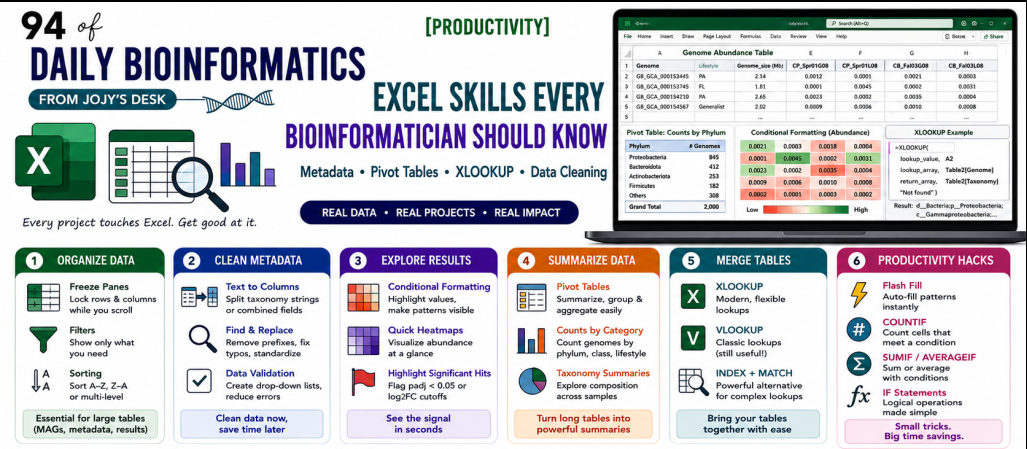
Excel Skills Every Bioinformatician Should Know (And Isn't Embarrassed to Use)
🧬 Day 94 of Daily Bioinformatics from Jojy’s Desk
Let’s get something out of the way. Many bioinformaticians act like they never open Excel. They write blog posts entirely about R and Python and bash and act like spreadsheets are a sign of weakness.
In reality, this is how most bioinformatics projects actually work:
Metadata         →   Excel
Quick inspection →   Excel
Analysis         →   R
Automation       →   Python
HPC jobs         →   Bash
Metadata lives in Excel. Collaborators send Excel files. You do a quick sanity check in a spreadsheet before you write the script. That is not a failure. That is pragmatic.
This post covers the Excel skills I use constantly when working with MAG abundance tables, taxonomy summaries, differential abundance results, and sample metadata — all the real files that come up in a microbial ecology project. No judgment. Just skills.
Part 1 — The everyday tools
Freeze panes
The first thing I do when I open a large genome table or metadata file. If you scroll right or down, you lose the headers and the sample names.
How: Select the cell just below your header row AND just to the right of your ID column. For a typical genome table where column A is Genome and row 1 is the header, click cell B2.
Then: View → Freeze Panes → Freeze Panes
Now row 1 and column A stay visible no matter how far you scroll. For a table with 2,000 genomes and 30 samples, this is essential.
Filters
Filters let you show only the rows that match a condition without deleting anything.
How: Click anywhere in your table → Data → Filter (or Ctrl + Shift + L)
Arrow dropdowns appear on every column header. Click one to filter by value, text, or condition.
Real example — differential abundance results:
You have a DESeq2 output table with 2,000 MAGs. You want to see only the significant ones:
- Filter the
padjcolumn → Number Filters → Less Than →0.05 - Filter the
log2FoldChangecolumn → Number Filters → Greater Than →1
Now you are looking at only the PA-enriched significant MAGs. No R required for this first pass.
Real example — taxonomy table:
You have a GTDB taxonomy table. You want to see all Proteobacteria:
- Filter the
Phylumcolumn → Text Filters → Contains →Proteobacteria
Sorting
How: Select your data → Data → Sort
Multi-level sorting is the useful part. In a MAG results table:
- Sort by
Lifestyle(A→Z) to group PA and FL together - Then within each group, sort by
log2_PA_FL(largest to smallest)
This gives you a ranked list within each lifestyle category without writing a single line of R.
Quick sort: Click any cell in a column → Data → Sort A→Z or Sort Z→A for a one-click sort on that column.
Conditional formatting
Colour-codes cells based on their value. The fastest way to visually scan a large table.
Real example — heatmap on an abundance matrix:
You have 20 genomes × 15 samples. Select the data range (not the headers), then:
Home → Conditional Formatting → Color Scales → Green-White-Red
High abundance = green, zero = white, rare = red. Instant visual heatmap without ggplot2.
Real example — flag significant results:
In a DESeq2 results table, select the padj column:
Home → Conditional Formatting → Highlight Cell Rules → Less Than → 0.05 → Red fill
Now every significant result is highlighted in red. You can scan 2,000 rows in seconds.
Real example — flag PA-enriched vs FL-enriched:
Select the log2FoldChange column:
-
New Rule → Format cells that are Greater Than → 1 → Blue fill(PA-enriched) -
New Rule → Format cells that are Less Than → -1 → Orange fill(FL-enriched)
Remove duplicates
Essential when merging annotation tables where the same genome might appear multiple times.
How: Select your data → Data → Remove Duplicates
Choose which columns define a duplicate. If your genome table has Genome as the ID, check only that column. Excel will remove rows where the Genome ID appears more than once and tell you how many rows were removed.
Warning: Always work on a copy. Remove duplicates cannot be undone once you save.
Text to columns
When you receive a file where multiple pieces of information are packed into one cell — like a GTDB taxonomy string — Text to Columns splits it into separate columns.
Example — splitting GTDB taxonomy:
d__Bacteria;p__Proteobacteria;c__Gammaproteobacteria;o__Pseudomonadales;f__Pseudomonadaceae;g__Pseudomonas;s__Pseudomonas_aeruginosa
Select the taxonomy column → Data → Text to Columns → Delimited → Semicolon → Finish
Each taxonomic level lands in its own column. Then use Find & Replace (below) to strip the d__, p__, c__ prefixes.
Find & Replace
Ctrl + H opens Find & Replace. The power move is using it for batch cleaning.
Strip GTDB prefixes:
- Find:
d__→ Replace with: (nothing) → Replace All - Repeat for
p__,c__,o__,f__,g__,s__
Fix Windows line ending issues in sample names:
- Find:
_→ Replace:-(or vice versa) to standardize naming
Clean up antiSMASH BGC class names:
- Find:
-→ Replace:.(makeslanthipeptide-class-i→lanthipeptide.class.i)
Replace sample name conventions:
- Find:
G08→ Replace:PAacross an entire metadata file
Data validation — prevent errors before they happen
Data validation restricts what can be entered in a cell. For metadata tables that feed into R or Python, this prevents the typos and inconsistencies that cause silent errors downstream.
Real example — metadata lifestyle column:
You want the Lifestyle column to only accept PA_associated or FL_associated.
Select the Lifestyle column → Data → Data Validation → Allow: List → Source: PA_associated,FL_associated
Now if anyone types pa associated or FL associated by mistake, Excel blocks it.
Real example — numeric-only columns:
Select the Salinity column → Data → Data Validation → Allow: Decimal → between 0 and 50
Prevents someone accidentally typing a sample name in the salinity column.
Part 2 — Pivot tables for microbiome and genomics data
Pivot tables are the most underused feature in Excel for biological data. They let you summarize, reshape, and explore large tables without writing any code.
The core idea
You have a long-format table (one row per observation). A pivot table collapses it into a summary matrix.
Example — taxonomy abundance table (long format):
| Sample | Phylum | Abundance |
|---|---|---|
| S1 | Proteobacteria | 40 |
| S1 | Bacteroidota | 25 |
| S2 | Proteobacteria | 35 |
| S2 | Bacteroidota | 30 |
After pivot table:
| Phylum | S1 | S2 |
|---|---|---|
| Proteobacteria | 40 | 35 |
| Bacteroidota | 25 | 30 |
This is your abundance matrix — the input to every R microbiome analysis — assembled in thirty seconds without any code.
How to create a pivot table
- Click anywhere in your data table
Insert → PivotTable → New Worksheet → OK- In the PivotTable Fields panel on the right:
- Drag
Phylum→ Rows - Drag
Sample→ Columns - Drag
Abundance→ Values (set to Sum)
- Drag
Done. Your wide-format abundance matrix is ready.
Real bioinformatics examples
Count genomes per phylum per lifestyle:
Columns: Phylum, Lifestyle, Genome
- Rows:
Phylum - Columns:
Lifestyle - Values: Count of
Genome
Instant summary: how many PA_associated vs FL_associated genomes per phylum.
Summarize CAZyme families per lifestyle:
Columns: Lifestyle, GH, GT, PL, CBM
- Rows:
Lifestyle - Values: Average of
GH, Average ofGT, etc.
Mean CAZyme counts per lifestyle group — the same table you would get from group_by(Lifestyle) %>% summarise(mean_GH = mean(GH)) in R, assembled in Excel in 30 seconds.
Count significant DEGs per population:
From a DESeq2 results file with a Population column and Significant column:
- Rows:
Population - Values: Count of
Significant(filtered to TRUE)
Per-population significant gene count table, publication-ready in one pivot.
Part 3 — Formulas that save hours
COUNTIF — count cells meeting a condition
=COUNTIF(range, criteria)
Count PA-associated genomes:
=COUNTIF(D:D, "PA_associated")
Count significant MAGs (padj < 0.05):
=COUNTIF(E:E, "<0.05")
Count how many samples contain Proteobacteria:
=COUNTIF(B:B, "*Proteobacteria*")
The * wildcard matches any text containing the word.
SUMIF — sum values meeting a condition
=SUMIF(range, criteria, sum_range)
Total abundance of Proteobacteria across all samples:
=SUMIF(B:B, "Proteobacteria", C:C)
Total GH CAZymes in PA-associated genomes:
=SUMIF(D:D, "PA_associated", F:F)
Where column D is Lifestyle and column F is GH_count.
IF — conditional logic
=IF(condition, value_if_true, value_if_false)
Classify log2FC direction:
=IF(C2>1, "PA-enriched", IF(C2<-1, "FL-enriched", "neutral"))
Flag significant results:
=IF(E2<0.05, "significant", "ns")
Add lifestyle label based on mean abundance comparison:
=IF(B2>C2, "PA_associated", IF(C2>B2, "FL_associated", "Equal"))
This is exactly the classification logic from the R script, implemented in Excel for a quick check.
XLOOKUP — the modern replacement for VLOOKUP
XLOOKUP is VLOOKUP without the limitations. It can look left, does not need columns to be in order, and has better error handling.
=XLOOKUP(lookup_value, lookup_array, return_array, [if_not_found])
Add taxonomy to a MAG results table:
You have a DESeq2 results table with genome IDs in column A. Your GTDB taxonomy table is on Sheet2 with genome IDs in column A and phylum in column B.
=XLOOKUP(A2, Sheet2!A:A, Sheet2!B:B, "Not found")
This pulls the phylum for each genome ID. No R merge required for a quick check.
Add lifestyle classification to a CAZyme table:
=XLOOKUP(A2, lifestyle_table!A:A, lifestyle_table!E:E, "unclassified")
Where lifestyle_table!E:E is the Lifestyle column of your classification output.
VLOOKUP (classic version — still works everywhere):
=VLOOKUP(A2, Sheet2!A:B, 2, FALSE)
The 2 means return column 2 of the lookup range. The FALSE means exact match. VLOOKUP only looks right (the lookup column must be the leftmost column of your range), which is why XLOOKUP replaced it.
INDEX + MATCH — the flexible lookup combination
When XLOOKUP is not available (older Excel versions), INDEX + MATCH does the same job:
=INDEX(return_range, MATCH(lookup_value, lookup_range, 0))
Look up a genome’s phylum:
=INDEX(Sheet2!B:B, MATCH(A2, Sheet2!A:A, 0))
The 0 in MATCH means exact match. INDEX returns the value at the matched position.
Text functions — cleaning biological IDs
LEFT, RIGHT, MID — extract parts of a string:
=LEFT(A2, 10)          → first 10 characters
=RIGHT(A2, 5)          → last 5 characters
=MID(A2, 4, 8)         → 8 characters starting at position 4
Extract the sample base name (strip G08/L08 suffix):
=LEFT(A2, LEN(A2)-3)
If A2 = CP_Spr01G08, this returns CP_Spr01.
Extract accession number from a genome name:
If A2 = GB_GCA_000153445.1:
=MID(A2, 4, 13) → GCA_000153445
CONCAT / TEXTJOIN — combine text:
=CONCAT(A2, "_", B2)
Combine sample name and fraction: CP_Spr01 + _ + PA → CP_Spr01_PA
=TEXTJOIN(";", TRUE, B2:H2)
Rejoin taxonomy levels back into a GTDB string after splitting them.
UNIQUE — list unique values (Excel 365 / 2021+):
=UNIQUE(B:B)
In a taxonomy column, this spills all unique phylum names into a new column. The equivalent of unique() in R or df['Phylum'].unique() in Python — useful for a fast sanity check before you run the analysis.
Part 4 — Flash Fill
Flash Fill is pattern recognition for data cleaning. You show Excel one or two examples of what you want, and it fills the rest automatically.
Example — standardize genome names:
Column A has mixed formats:
GCA_000153445.1
GCA000153745
gb_GCA_000156155
Type your desired format in column B for the first two rows:
GCA_000153445
GCA_000153745
Then press Ctrl + E. Excel recognizes the pattern and fills the rest.
Example — extract sample IDs from file names:
Column A: CP_Spr01G08_R1.fastq.gz
Type in B1: CP_Spr01G08
Press Ctrl + E. Excel extracts the sample ID from every filename in the column.
Flash Fill works remarkably well for the kind of ID standardization that you would otherwise spend 20 minutes writing a sed command for.
Part 5 — Excel vs R vs Python (the honest answer)
This is the one nobody writes about honestly, so here it is:
| Task | Best tool | Why |
|---|---|---|
| Edit metadata, fix typos, add columns | Excel | Fast, visual, no code required |
| Quick look at a new file | Excel | Faster than head + str() |
| Share data with a collaborator | Excel | Everyone can open it |
| Statistical analysis (DESeq2, MaAsLin) | R | Built for it |
| Visualization (ggplot2, pheatmap) | R | Much better than Excel charts |
| Microbiome community analysis | R | vegan, phyloseq, etc. |
| Process hundreds of files at once | Python | Loops, automation, pandas |
| HPC job submission | Bash | The only option |
| Machine learning | Python | scikit-learn, PyTorch |
| Quick VLOOKUP / COUNTIF across two tables | Excel | Faster than writing a merge |
The key insight: these tools are not competing. They are complementary. The mental model is:
Raw data from instrument / HPC
          ↓
     Excel — clean, inspect, share
          ↓
     R / Python — analyse, visualize, model
          ↓
     Excel — format final table for paper
Most published papers in microbial ecology involved Excel at some point. That is fine. The goal is to get good science done, not to prove that you never use a GUI.
Summary cheat sheet
| Tool | What it does | Bioinformatics use case |
|---|---|---|
| Freeze panes | Lock headers while scrolling | Any large genome or abundance table |
| Filters | Show rows matching a condition | Significant DEGs, specific phyla, one bay |
| Sort (multi-level) | Order rows by multiple columns | Sort by Lifestyle then log2FC |
| Conditional formatting | Colour-code by value | Visual heatmap, flag significant rows |
| Remove duplicates | Deduplicate rows | Clean merged annotation tables |
| Text to columns | Split one column into many | Parse GTDB taxonomy strings |
| Find & Replace | Batch text substitution | Strip GTDB prefixes, fix naming |
| Data validation | Restrict cell input | Prevent metadata typos |
| Pivot table | Reshape long → wide | Build abundance matrix from long format |
| COUNTIF | Count matching cells | Count PA/FL genomes, significant MAGs |
| SUMIF | Sum with a condition | Total CAZymes per lifestyle |
| IF | Conditional value | Classify by log2FC threshold |
| XLOOKUP | Flexible lookup across tables | Add taxonomy or lifestyle to results |
| INDEX+MATCH | Same as XLOOKUP, wider compatibility | Older Excel versions |
| LEFT/RIGHT/MID | Extract substring | Strip suffixes, extract accessions |
| CONCAT/TEXTJOIN | Combine strings | Build GTDB strings, combine IDs |
| UNIQUE | List unique values | Check taxonomy levels present |
| Flash Fill | Pattern-based autofill | Standardize inconsistent IDs |
Posted as Day 94 of Daily Bioinformatics from Jojy’s Desk.