Daily Bioinformatics #98: Keeping Scratch Files Alive on HPC Clusters
Keeping Scratch Files Alive on HPC Clusters
Day 98 of daily bioinformatics from Jojy’s desk
One of the first things I learned after joining my new lab wasn’t about sequencing, metagenomics, or statistics.
It was about not losing my data.
Most High Performance Computing (HPC) systems provide a scratch directory for temporary storage. Scratch is fast, has plenty of space, and is ideal for intermediate files generated during analysis.
But there is a catch.
Many institutions automatically remove files that have not been accessed for a certain period — sometimes 7, 30, 60, or 90 days, depending on the cluster. If you leave a project untouched for too long, thousands of intermediate files may disappear overnight.
Why do HPC centers do this?
Scratch storage is shared by hundreds or even thousands of researchers.
Automatic cleanup helps:
- free storage space
- improve filesystem performance
- remove abandoned projects
- ensure resources remain available for active users
The policy is usually based on the last access or modification time of a file. That means an inactive project can eventually be deleted even if you still need it.
The simple solution
If your project is still active but you simply haven’t touched it recently, you can refresh the modification timestamp of the files. Linux provides a simple command for this:
touch filename
The touch command updates a file’s timestamp without changing its contents.
Instead of manually touching thousands of files, I wrote a small Bash script that walks my project directory, reports on usage, and refreshes timestamps on anything older than my cluster’s purge threshold — with a five-day safety margin built in.
Here’s the script I actually run against my lab’s scratch space:
#!/usr/bin/env bash

set -uo pipefail

###############################################################################
# Weekly scratch maintenance and email report
###############################################################################

SCRATCH_DIR="/local/scratch/jojyj"
EMAIL="jojy.john@som.umaryland.edu"

# Touch files and directories older than five days.
# This provides a margin before the seven-day scratch purge threshold.
AGE_DAYS=5

# Number of largest directories and files to report.
TOP_N=20

PATH="/usr/local/bin:/usr/bin:/bin"
export PATH

REPORT=$(mktemp "/tmp/jojyj_scratch_report.XXXXXX")
trap 'rm -f "$REPORT"' EXIT

HOST_NAME=$(hostname)
START_TIME=$(date)
STATUS="SUCCESS"

{
    echo "Ravel Lab Weekly Scratch Report"
    echo "Scratch directory : $SCRATCH_DIR"
    echo "Touch threshold    : Older than $AGE_DAYS days"

    if [[ ! -d "$SCRATCH_DIR" ]]; then
        echo "ERROR: Scratch directory does not exist."
        STATUS="FAILED"
    else
        df -h "$SCRATCH_DIR"
        du -sh "$SCRATCH_DIR" 2>/dev/null

        OLD_FILE_COUNT=$(find "$SCRATCH_DIR" -xdev -type f -mtime +"$AGE_DAYS" 2>/dev/null | wc -l)
        OLD_DIR_COUNT=$(find "$SCRATCH_DIR" -xdev -type d -mtime +"$AGE_DAYS" 2>/dev/null | wc -l)

        if [[ "$OLD_FILE_COUNT" -gt 0 ]]; then
            find "$SCRATCH_DIR" -xdev -type f -mtime +"$AGE_DAYS" -exec touch --no-dereference {} +
        fi

        if [[ "$OLD_DIR_COUNT" -gt 0 ]]; then
            find "$SCRATCH_DIR" -xdev -depth -type d -mtime +"$AGE_DAYS" -exec touch --no-dereference {} +
        fi
    fi

    echo "Status    : $STATUS"
    echo "Completed : $(date)"
} > "$REPORT" 2>&1

# Email the report (falls back through mailx -> mail -> sendmail)
if command -v mailx >/dev/null 2>&1; then
    mailx -s "[Ravel Scratch Report] $STATUS - $(date +%F)" "$EMAIL" < "$REPORT"
elif command -v mail >/dev/null 2>&1; then
    mail -s "[Ravel Scratch Report] $STATUS - $(date +%F)" "$EMAIL" < "$REPORT"
elif command -v sendmail >/dev/null 2>&1; then
    { echo "To: $EMAIL"; echo "Subject: [Ravel Scratch Report] $STATUS - $(date +%F)"; echo; cat "$REPORT"; } | sendmail -t
fi
(This is a trimmed version for readability — the full script also reports the largest top-level directories, the largest individual files with human-readable sizes, and re-verifies that nothing old remains after touching. It’s built to run as a weekly cron or SLURM job and email itself to me, so I never have to remember to run it by hand.)
Running the script
bash refresh_scratch.sh
For long-term projects, this can be automated with a cron job or a weekly SLURM job — as long as your HPC policies allow it. I run mine on a weekly cadence, well inside the seven-day purge window on our cluster.
Automating the process with Cron
Remembering to run the script every few weeks is easy to forget — especially when you’re juggling multiple projects.
A better approach is to let Linux do it automatically using cron, the built-in task scheduler available on most Unix-like systems.
For example, I scheduled my script to run once every Sunday morning, ensuring that active project files are refreshed regularly without any manual intervention.
0 8 * * 0 /home/username/scripts/touch_scratch_and_report.sh
This cron job means:
| Field | Value | Meaning |
|---|---|---|
| Minute | 0 | Minute (00) |
| Hour | 8 | 8:00 AM |
| Day of month | * | Every day of the month |
| Month | * | Every month |
| Day of week | 0 | Every Sunday |
You can choose any schedule that fits your workflow — weekly or biweekly is often sufficient for projects that are actively being maintained.
Email notifications
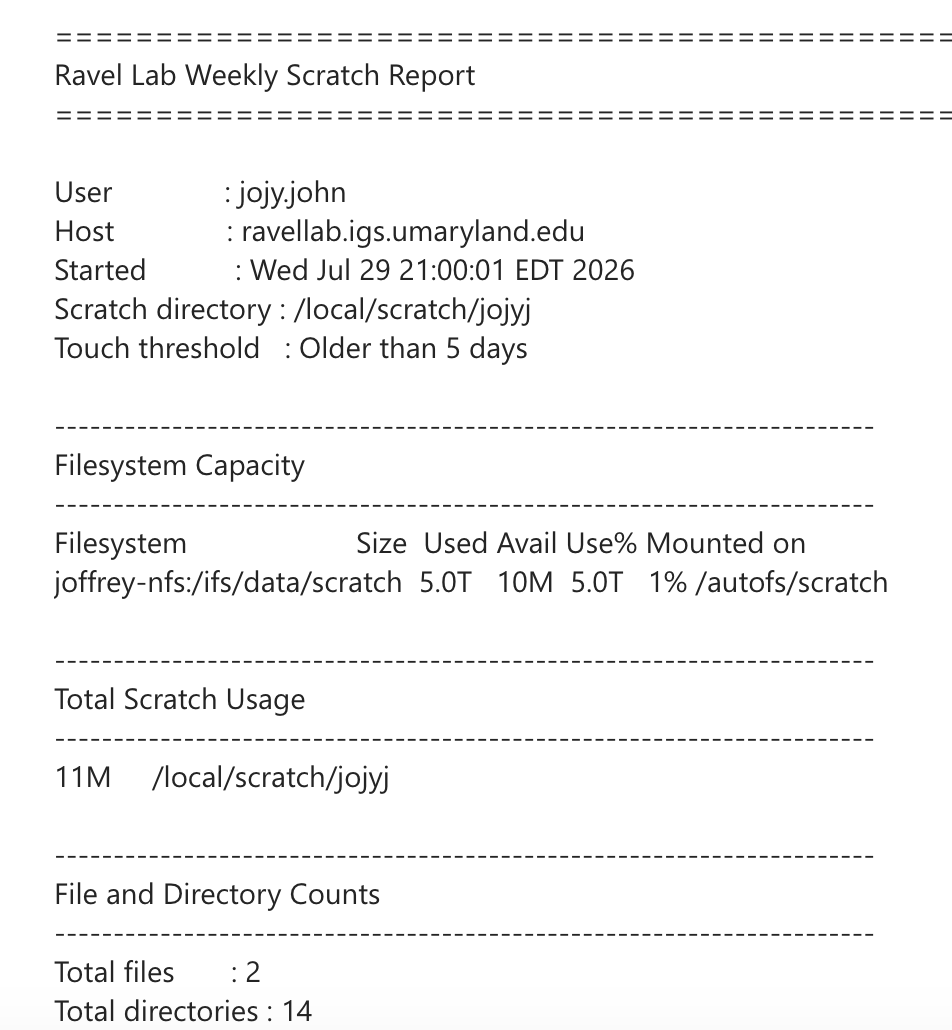
One feature I particularly like is that my script sends me a short email report after it finishes.
The report includes information such as:
- Which project directory was refreshed
- How many files were updated
- The execution time
- Any warnings or errors encountered
This gives me confidence that the script is still running as expected without having to log into the HPC cluster and check manually.
(Insert screenshot of the email report here.)
Why automate?
Automation offers several advantages:
- No need to remember when scratch storage expires.
- Reduces the chance of losing intermediate analysis files.
- Provides a simple audit trail through email reports.
- Lets you focus on research instead of routine maintenance.
Like many small bioinformatics workflows, the script itself is only a few lines long — but automating it makes it much more reliable.
⚠️ A caution: cron jobs and node restarts
Cron reliability depends on where the job lives — and this is the part that bit me once.
On many HPC systems, your crontab is tied to a specific login or interactive node, not to the cluster as a whole. If that node is rebooted, reimaged, taken down for maintenance, or you get load-balanced onto a different login node next time you connect, your crontab may not automatically follow you. In some cluster configurations, cron may not even be enabled on compute or interactive nodes at all, and the job only runs if it was submitted from the correct scheduler-aware host.
A few practical takeaways:
- Check periodically that the job is still registered. Run
crontab -levery so often — don’t assume that because you set it up once, it’s still there. - Confirm the email reports are still arriving. A missing weekly email is often the first (and only) sign that the cron job silently stopped running after a node change.
- Know which node your crontab lives on. Some clusters have multiple login nodes behind a round-robin DNS entry;
crontab -eon one node may not be visible from another. - Ask your HPC admins about persistent scheduling options. Some centers offer a dedicated cron/scheduler node, or recommend using a recurring low-priority SLURM job instead of
cronspecifically so it survives node rotations. - Re-add the crontab after any announced maintenance window. If admins send a notice about node reboots or reimaging, treat that as a cue to double check your scheduled jobs afterward.
This isn’t meant to discourage automation — just to set expectations. A cron job on the wrong node is a silent failure, not a loud one, and silent failures are exactly what this script was meant to prevent in the first place.
Always follow your HPC policies
Every computing center has its own storage policy. Some systems specifically recommend updating timestamps for active projects. Others require users to move important data to permanent storage instead, and some flag or restrict scripted touch workarounds entirely.
Before automating anything like this, read your institution’s documentation and, if in doubt, ask your HPC support team directly. A quick email is a lot cheaper than losing a week’s worth of intermediate files — or violating a policy you didn’t know existed.
My workflow
Personally, I treat scratch storage as working space, not permanent storage:
Raw data
    ↓
Scratch storage
    ↓
Analysis
    ↓
Results
    ↓
Permanent project storage
    ↓
GitHub (scripts only)
The touch script simply buys me peace of mind while an analysis is still in progress — it is not a substitute for actually moving finished results off scratch.
Common mistakes to avoid
- Touching everything, not just old files. Blanket-touching an entire directory tree resets timestamps you might actually want to track (e.g., for detecting stale intermediate files). Filter with
-mtime +Nfirst. - Forgetting
--no-dereferenceon symlinks. Without it,touchfollows symlinks and can silently update the timestamp of a target file elsewhere on the filesystem — not the link itself. - Assuming scratch is backed up. It almost never is. Refreshing timestamps prevents deletion; it does not protect against disk failure, quota issues, or accidental
rm -rf. - Treating a workaround as a policy exemption. Some centers actively discourage or block touch-based purge avoidance. Check first.
- Not verifying after the fact. Run a second
find ... -mtime +Npass after touching to confirm nothing old remains — cron jobs fail silently more often than you’d think.
Reproducibility checklist
- Scratch path and purge threshold documented at the top of the script (
SCRATCH_DIR,AGE_DAYS) - Safety margin built in before the actual purge threshold (here: 5 days vs. a 7-day policy)
-
set -uo pipefailfor safer failure behavior - Report generated to a temp file, cleaned up via
trap ... EXIT - Exit codes distinguish success / warnings / failure for downstream monitoring (e.g., cron alerting)
- Mail fallback chain (
mailx→mail→sendmail) so the job doesn’t fail silently if one tool is missing - Institutional storage policy re-checked before scheduling as a recurring job
- Crontab existence spot-checked periodically (
crontab -l), especially after node maintenance or reboots
The complete workflow
Putting it all together, here’s the full lifecycle of an active HPC project, from upload to permanent storage:
Local computer
      │
      ▼
Upload data to Scratch
      │
      ▼
Run analyses
      │
      ▼
Weekly cron job
      │
      ▼
Touch active files
      │
      ▼
Email report ✔
      │
      ▼
Move final results to permanent storage
The touch script and its cron job only cover the middle of this pipeline. They keep an active project alive on scratch — they are not a substitute for eventually moving finished results to permanent storage, or for having real backups.
Final thoughts
Sometimes the most useful bioinformatics lessons are not algorithms or software packages. They are the small workflow improvements that prevent hours — or even days — of unnecessary work.
Learning how your HPC manages storage is one of those lessons. A short Bash script can save terabytes of data from being removed simply because a project was inactive for a few weeks.
Happy computing! 🚀