From Messy Subfolders to Analysis-Ready FASTA: Rename with Python + Collect with Linux find
From Messy Subfolders to Analysis-Ready FASTA: Rename with Python + Collect with find
Some days I’m running heavy pipelines. Today I’m home on leave taking care of my family — we’re all down sick — so I’m keeping it simple. But simple doesn’t mean not useful.
This is a workflow I reach for constantly in bioinformatics, and I want to write it down properly while it’s fresh.
The Problem
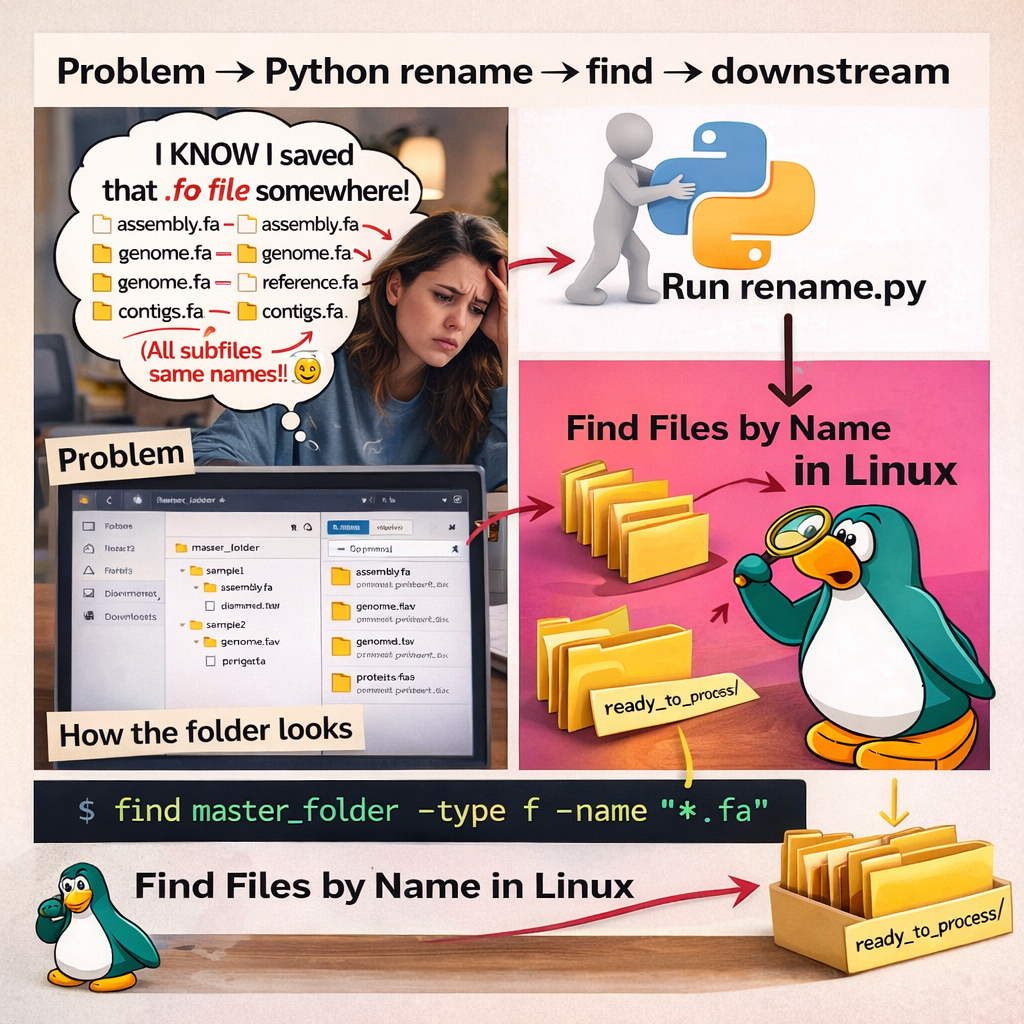
You have a master folder. Inside it, each subfolder is a sample name — a genome, a MAG, a sequencing run. Inside each subfolder sit the output files from some tool. The trouble is: those files almost always have the same names across every subfolder.
master_folder/
├── MAG_001/
│   ├── contigs.fa
│   ├── proteins.faa
│   └── diamond.tsv
├── MAG_002/
│   ├── contigs.fa
│   ├── proteins.faa
│   └── diamond.tsv
└── MAG_003/
    ├── contigs.fa
    ├── proteins.faa
    └── diamond.tsv
This pattern shows up everywhere:
- Prokka outputs per genome or MAG, then you want to batch-run InterProScan
- DIAMOND outputs per sample, then you want to merge into a final gene table
- Any tool that writes the same filenames for every sample it processes
The moment you try to collect files into one place for a downstream batch job, you’re in trouble — files overwrite each other, or you lose track of which file came from which sample.
The fix is a two-step workflow:
- Rename each file to include its parent folder (sample) name
- Collect all files of interest using Linux
find
Step 1 — Rename Files Using the Folder Name (Python)
The goal is to transform:
MAG_001/contigs.fa     →   MAG_001__contigs.fa
MAG_002/proteins.faa   →   MAG_002__proteins.faa
Every file now “carries” its sample name, so you can safely move files around without losing provenance.
Here is the script I use:
rename_by_folder.py
#!/usr/bin/env python3
import os
from pathlib import Path

MASTER = Path("master_folder")  # change this to your master folder path
SEP = "__"                       # separator between sample name and filename

# File extensions you want to rename (edit as needed)
EXTS = {".fa", ".fna", ".fasta", ".faa", ".tsv", ".txt"}

for sub in MASTER.iterdir():
    if not sub.is_dir():
        continue

    sample = sub.name  # e.g. "MAG_001"

    for f in sub.iterdir():
        if not f.is_file():
            continue
        if f.suffix.lower() not in EXTS:
            continue

        new_name = f"{sample}{SEP}{f.name}"
        new_path = f.with_name(new_name)

        # Skip if already renamed
        if f.name.startswith(sample + SEP):
            print(f"[SKIP already renamed] {f}")
            continue

        # Avoid accidental overwrite
        if new_path.exists():
            print(f"[SKIP exists] {new_path}")
            continue

        f.rename(new_path)
        print(f"[RENAMED] {f}  →  {new_path}")
Save the script as rename_by_folder.py in the same directory as your master folder, then run:
python3 rename_by_folder.py
After this step, your structure looks like:
master_folder/
├── MAG_001/
│   ├── MAG_001__contigs.fa
│   ├── MAG_001__proteins.faa
│   └── MAG_001__diamond.tsv
├── MAG_002/
│   ├── MAG_002__contigs.fa
│   ├── MAG_002__proteins.faa
│   └── MAG_002__diamond.tsv
└── MAG_003/
    ├── MAG_003__contigs.fa
    ├── MAG_003__proteins.faa
    └── MAG_003__diamond.tsv
Every file now carries its sample identity — safe to move anywhere.
Step 2 — Collect All FASTA Files Using find
The Problem
You’ve just renamed hundreds of files across dozens of subfolders. Now you need to run a downstream tool — say, InterProScan or a custom annotation script — that expects all input files to be in a single directory.
You could navigate into each subfolder manually and copy the files one by one. But with 50, 100, or 500 sample folders, that’s not a workflow — that’s a punishment. You could also write a for loop in bash, but that requires knowing your folder structure perfectly and breaks the moment anything changes.
There’s a cleaner way.
The Solution: find
Linux’s find command was built exactly for this situation. It recursively walks your entire directory tree — no matter how deep or messy — and returns every file matching your criteria. One command. No loops. No manual navigation.
Instead of you going into each folder to find the files, find does it for you.
Basic syntax
find master_folder -type f -name "*.fa"
Breaking this down:
| Part | What it does |
|---|---|
find | the command |
master_folder | starting directory (searches recursively by default) |
-type f | match files only (not directories) |
-name "*.fa" | match filenames ending in .fa |
This prints every .fa file found anywhere under master_folder, no matter how deep.
Count how many files you have before running a batch job
find master_folder -type f -name "*.fa" | wc -l
Always a good sanity check before sending thousands of files to a cluster.
Copy all matching files into a single output directory
mkdir -p all_fasta

find master_folder -type f -name "*.fa" -exec cp {} all_fasta/ \;
Because you renamed the files in Step 1, there are no collisions. Every file lands safely in all_fasta/ with its sample name intact.
Real-world example
find /project/genomes/ -type f -name "*.faa" -exec cp {} /project/interproscan_input/ \;
This collects all protein FASTA files (.faa) from a genome project directory and drops them into the InterProScan input folder, ready for batch annotation.
Why This Matters
When working with MAG assemblies, reference genomes, pangenome datasets, or annotation outputs, directories grow deep and messy fast. Tools like Prokka, DIAMOND, and CheckM all write outputs into per-sample subfolders — which is sensible for organization, but painful when you need to batch-process everything downstream.
find is one of the most powerful glue commands in bioinformatics precisely because it doesn’t care how your directories are structured. It will search as deep as needed and give you exactly the files you asked for.
Takeaway
This is one of those small “glue” workflows that quietly saves hours:
- Folder name → sample name → safe filenames → clean collection directory
- Python handles the renaming logic
- Linux
findhandles the searching and collecting - Simple, reproducible, and reviewer-proof
Sometimes, simple wins the day. Feel better soon to anyone else also working through a sick-day fog. 🤒
🧬 Day 50 — Daily Bioinformatics from Jojy’s Desk